---
title: How to turn receipts on/off and also enable email receipts.
description: Email Receipts SPARK EPOS Handheld
---
[Skip to content](https://helpcentre.sparkepos.com/knowledge/how-to-turn-receipts-on/off-and-also-enable-email-receipts#main-content)
English
Show submenu for translations
[More support](https://helpcentre.sparkepos.com/knowledge/kb-tickets/new?hsLang=en)
![spark 512\*512.png\]](https://helpcentre.sparkepos.com/hs-fs/hubfs/spark%20512*512.png?height=40&name=spark%20512*512.png)
- [Default HubSpot Blog](https://blog.sparkepos.com/blog)
Open main navigation
Close main navigation
- [Default HubSpot Blog](https://blog.sparkepos.com/blog)
- English
Show submenu for translations
- [More support](https://helpcentre.sparkepos.com/knowledge/kb-tickets/new)
- SPARK Powered by StreetAway®
SPARK Powered by StreetAway®
How can we help you?
- There are no suggestions because the search field is empty.
1. [SPARK • Help Centre](https://helpcentre.sparkepos.com/knowledge?hsLang=en)
2. [SPARK Handheld](https://helpcentre.sparkepos.com/knowledge/spark-handheld?hsLang=en)
# How to turn receipts on/off and also enable email receipts.
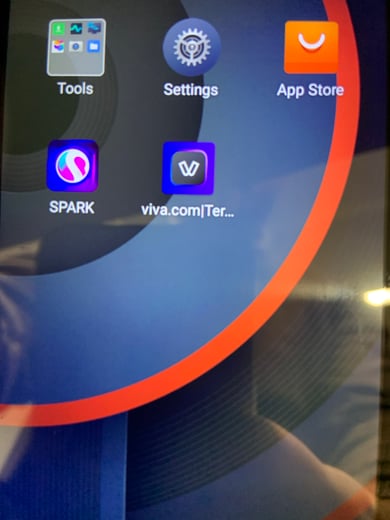
Find the app on the screen that looks like a **shopping cart** or a **cash register**. It will have the name **"Viva Terminal"** written underneath it. **Tap** on that icon to open it.
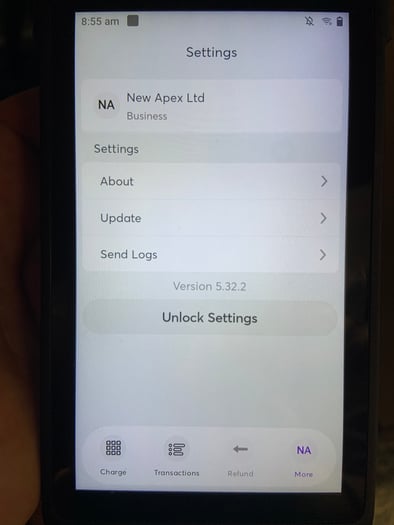
Look at the **bottom right corner** of the screen. You will see a button that says **NA**. **Tap** this button now.
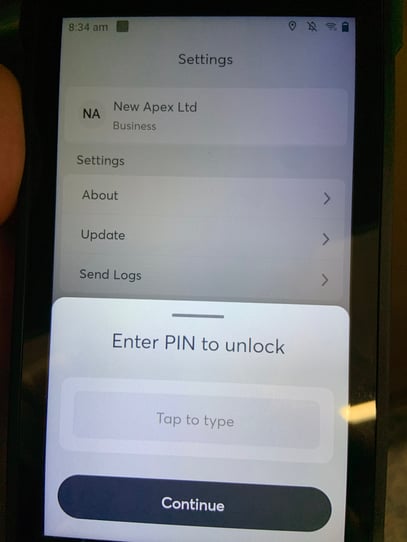
A box will appear asking for a PIN. **Type in** your **four-digit secret PIN number** using the keypad that pops up. Then, **press** the **Enter** (or **Confirm**) button to unlock the receipt screen.
On the screen that appears next, look for the button that clearly says **Receipts**. **Tap** on this button.
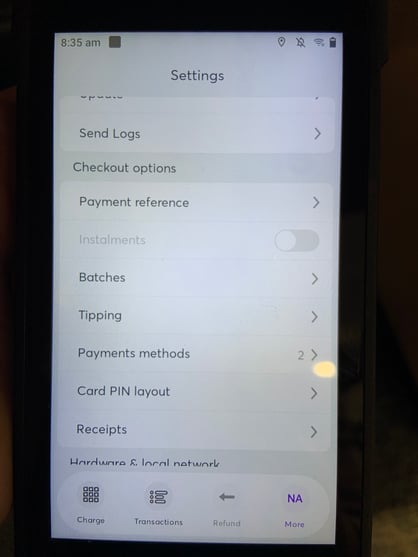
Look for the switch or slider (it often looks like a little pill shape). This is the **Receipt Toggle**. **Tap** on this switch so that it moves from **OFF** to **ON**. (It will turn **blue** when it is ON)
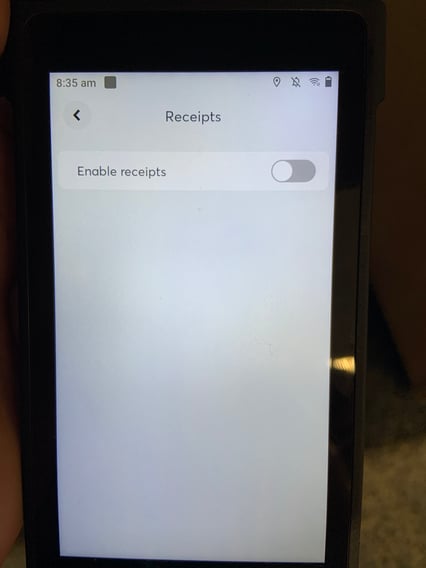
Just below the main receipt switch, you will see a separate option for **Email Receipts**. If you want to offer customers the choice to get their receipt by email, t**ap** this switch to turn it **ON** too. The next time you take a payment, the machine will **automatically ask** if the customer wants an email receipt.
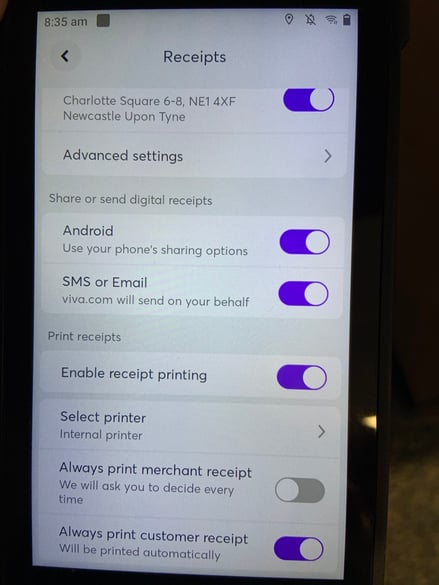
You are now ready to offer customers the option for email receipts at checkout.
### How it Works During a Sale:
When you successfully take a card or cash payment:
1. The machine will now **automatically ask** you: **"Do you want to send an email receipt?"**
2. If the customer says **Yes**: **Tap** the **Yes** button on the screen, and a new box will appear for you to **Type in** their email address.
3. If the customer says **No**: **Tap** the **No** button, and the transaction will finish normally (usually printing a paper receipt).
- [SPARK 2.0 - Getting Started](https://helpcentre.sparkepos.com/knowledge/spark-2-0-getting-started?hsLang=en#main-content)
- [Staff Management](https://helpcentre.sparkepos.com/knowledge/spark-2-0-getting-started?hsLang=en#staff-management)
- [Software & Installation](https://helpcentre.sparkepos.com/knowledge/spark-2-0-getting-started?hsLang=en#software-installation)
- [SPARK Cloud HQ](https://helpcentre.sparkepos.com/knowledge/spark-cloud-hq?hsLang=en#main-content)
- [Getting Started with Cloud HQ](https://helpcentre.sparkepos.com/knowledge/spark-cloud-hq?hsLang=en#getting-started-with-cloud-hq)
- [System Settings](https://helpcentre.sparkepos.com/knowledge/spark-cloud-hq?hsLang=en#system-settings)
- [Stock Management](https://helpcentre.sparkepos.com/knowledge/spark-cloud-hq?hsLang=en#stock-management)
- [Staff Management](https://helpcentre.sparkepos.com/knowledge/spark-cloud-hq?hsLang=en#staff-management)
- [Menu Management](https://helpcentre.sparkepos.com/knowledge/spark-cloud-hq?hsLang=en#menu-management)
- [Reports](https://helpcentre.sparkepos.com/knowledge/spark-cloud-hq?hsLang=en#reports)
- [CRM](https://helpcentre.sparkepos.com/knowledge/spark-cloud-hq?hsLang=en#crm)
- [Front Screen Media](https://helpcentre.sparkepos.com/knowledge/spark-cloud-hq?hsLang=en#front-screen-media)
- [End of day reports](https://helpcentre.sparkepos.com/knowledge/spark-cloud-hq?hsLang=en#end-of-day-reports)
- [Reservations](https://helpcentre.sparkepos.com/knowledge/spark-cloud-hq?hsLang=en#reservations)
- [Store Settings](https://helpcentre.sparkepos.com/knowledge/spark-cloud-hq?hsLang=en#store-settings)
- [Gift Voucher](https://helpcentre.sparkepos.com/knowledge/spark-cloud-hq?hsLang=en#gift-voucher)
- [SPARK EPOS Terminal](https://helpcentre.sparkepos.com/knowledge/spark-epos-terminal?hsLang=en#main-content)
- [Basics](https://helpcentre.sparkepos.com/knowledge/spark-epos-terminal?hsLang=en#basics)
- [Scanners](https://helpcentre.sparkepos.com/knowledge/spark-epos-terminal?hsLang=en#scanners)
- [Printing / Printers](https://helpcentre.sparkepos.com/knowledge/spark-epos-terminal?hsLang=en#printing-printers)
- [Settings](https://helpcentre.sparkepos.com/knowledge/spark-epos-terminal?hsLang=en#settings)
- [CRM](https://helpcentre.sparkepos.com/knowledge/spark-epos-terminal?hsLang=en#crm)
- [Getting Started](https://helpcentre.sparkepos.com/knowledge/spark-epos-terminal?hsLang=en#getting-started)
- [Vouchers](https://helpcentre.sparkepos.com/knowledge/spark-epos-terminal?hsLang=en#vouchers)
- [Payments](https://helpcentre.sparkepos.com/knowledge/spark-epos-terminal?hsLang=en#payments)
- [SPARK Reservations](https://helpcentre.sparkepos.com/knowledge/spark-reservations?hsLang=en#main-content)
- [Getting started with Reservation](https://helpcentre.sparkepos.com/knowledge/spark-reservations?hsLang=en#getting-started-with-reservation)
- [Terminal](https://helpcentre.sparkepos.com/knowledge/spark-reservations?hsLang=en#terminal)
- [Session Times](https://helpcentre.sparkepos.com/knowledge/spark-reservations?hsLang=en#session-times)
- [Back office](https://helpcentre.sparkepos.com/knowledge/spark-reservations?hsLang=en#back-office)
- [SPARK Handheld](https://helpcentre.sparkepos.com/knowledge/spark-handheld?hsLang=en#main-content)
- [Basics](https://helpcentre.sparkepos.com/knowledge/spark-handheld?hsLang=en#basics)
- [SPARK Pay](https://helpcentre.sparkepos.com/knowledge/spark-handheld?hsLang=en#spark-pay)
- [Device Settings](https://helpcentre.sparkepos.com/knowledge/spark-handheld?hsLang=en#device-settings)
- [Getting Started](https://helpcentre.sparkepos.com/knowledge/spark-handheld?hsLang=en#getting-started)
- [Transactions](https://helpcentre.sparkepos.com/knowledge/spark-handheld?hsLang=en#transactions)
- [Payments](https://helpcentre.sparkepos.com/knowledge/spark-handheld?hsLang=en#payments)
- [X-Read and End Of Day Reads](https://helpcentre.sparkepos.com/knowledge/spark-handheld?hsLang=en#x-read-and-end-of-day-reads)
- [Voucher](https://helpcentre.sparkepos.com/knowledge/spark-handheld?hsLang=en#voucher)
- [Table Plan](https://helpcentre.sparkepos.com/knowledge/spark-handheld?hsLang=en#table-plan)
- [Quick Service](https://helpcentre.sparkepos.com/knowledge/spark-handheld?hsLang=en#quick-service)
- [Customer LookUp](https://helpcentre.sparkepos.com/knowledge/spark-handheld?hsLang=en#customer-lookup)
- [Cash Draw](https://helpcentre.sparkepos.com/knowledge/spark-handheld?hsLang=en#cash-draw)
- [Troubleshooting Handheld connecting to Terminal](https://helpcentre.sparkepos.com/knowledge/spark-handheld?hsLang=en#troubleshooting-handheld-connecting-to-terminal)
- [SPARK Pay](https://helpcentre.sparkepos.com/knowledge/spark-pay?hsLang=en#main-content)
- [Transactions](https://helpcentre.sparkepos.com/knowledge/spark-pay?hsLang=en#transactions)
- [SPARK Pay settings](https://helpcentre.sparkepos.com/knowledge/spark-pay?hsLang=en#spark-pay-settings)
- [TidyPay Gateway](https://helpcentre.sparkepos.com/knowledge/spark-pay?hsLang=en#tidypay-gateway)
- [SPARK app (handheld)](https://helpcentre.sparkepos.com/knowledge/spark-pay?hsLang=en#spark-app-handheld)
- [Klarna](https://helpcentre.sparkepos.com/knowledge/spark-pay?hsLang=en#klarna)
- [Self Ordering](https://helpcentre.sparkepos.com/knowledge/self-ordering?hsLang=en#main-content)
- [Mobile Ordering](https://helpcentre.sparkepos.com/knowledge/self-ordering?hsLang=en#mobile-ordering)
- [Kiosk](https://helpcentre.sparkepos.com/knowledge/kiosk?hsLang=en#main-content)
- [Kiosk Express](https://helpcentre.sparkepos.com/knowledge/kiosk?hsLang=en#kiosk-express)
- [Kiosk Settings](https://helpcentre.sparkepos.com/knowledge/kiosk?hsLang=en#kiosk-settings)
- [SPARK KDS](https://helpcentre.sparkepos.com/knowledge/spark-kds?hsLang=en#main-content)
- [Getting Started](https://helpcentre.sparkepos.com/knowledge/spark-kds?hsLang=en#getting-started)
- [Features](https://helpcentre.sparkepos.com/knowledge/spark-kds?hsLang=en#features)
- [Robotics](https://helpcentre.sparkepos.com/knowledge/robotics?hsLang=en#main-content)
- [Bella Bot](https://helpcentre.sparkepos.com/knowledge/robotics?hsLang=en#bella-bot)
- [Ketty bot](https://helpcentre.sparkepos.com/knowledge/robotics?hsLang=en#ketty-bot)
- [Hola Bot](https://helpcentre.sparkepos.com/knowledge/robotics?hsLang=en#hola-bot)
- [Butler Bot W3](https://helpcentre.sparkepos.com/knowledge/robotics?hsLang=en#butler-bot-w3)
- [FAQ](https://helpcentre.sparkepos.com/knowledge/robotics?hsLang=en#faq)
- [PuduBot 2](https://helpcentre.sparkepos.com/knowledge/robotics?hsLang=en#pudubot-2)
- [Cleaning Robots](https://helpcentre.sparkepos.com/knowledge/cleaning-robots?hsLang=en#main-content)
- [Phantas](https://helpcentre.sparkepos.com/knowledge/cleaning-robots?hsLang=en#phantas)
- [SP50](https://helpcentre.sparkepos.com/knowledge/cleaning-robots?hsLang=en#sp50)
- [L50](https://helpcentre.sparkepos.com/knowledge/cleaning-robots?hsLang=en#l50)
- [C30](https://helpcentre.sparkepos.com/knowledge/cleaning-robots?hsLang=en#c30)
- [SH1](https://helpcentre.sparkepos.com/knowledge/cleaning-robots?hsLang=en#sh1)
- [FAQ](https://helpcentre.sparkepos.com/knowledge/faq?hsLang=en)
- [Create a Ticket](https://helpcentre.sparkepos.com/knowledge/create-a-ticket?hsLang=en#main-content)
- [Support Ticket](https://helpcentre.sparkepos.com/knowledge/create-a-ticket?hsLang=en#support-ticket)
- [Customer Portal](https://helpcentre.sparkepos.com/knowledge/create-a-ticket?hsLang=en#customer-portal)
- [EPOS FAQ](https://helpcentre.sparkepos.com/knowledge/epos-faq?hsLang=en)
- [Sunmi Products](https://helpcentre.sparkepos.com/knowledge/sunmi-products?hsLang=en)
- [Default HubSpot Blog](https://blog.sparkepos.com/blog)
[](http://www.sparkepos.com)
SPARK Help Centre
[mailto:email@email.com](mailto:email@email.com)
Copyright © 2026, SPARK EPoS