![spark 512*512.png]](https://helpcentre.sparkepos.com/hs-fs/hubfs/spark%20512*512.png?height=40&name=spark%20512*512.png)
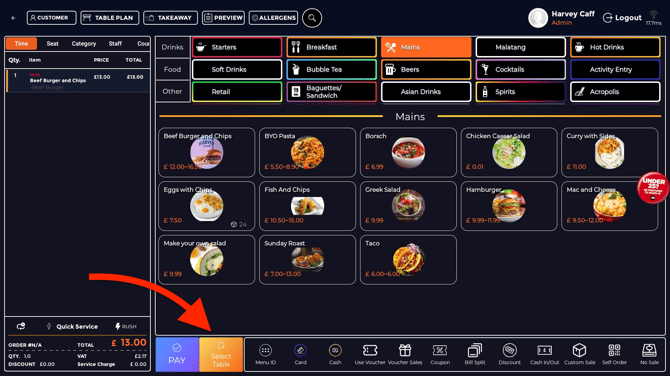
To add a table note on your SPARK EPOS Terminal, first select the customer’s chosen menu item. Once the item is added, tap on “select table.”
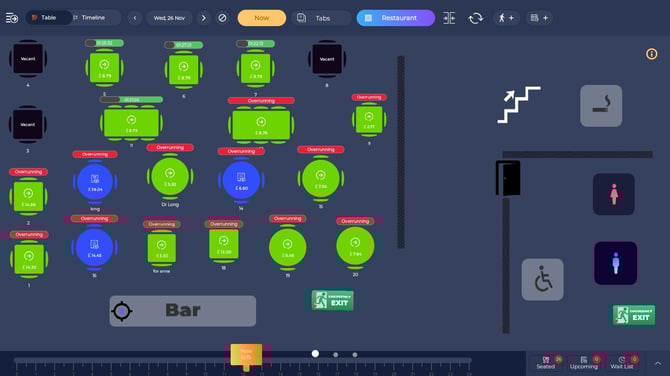
After tapping select table, this will bring you to the table layout screen. Now you can select your table by double tapping on the required table.
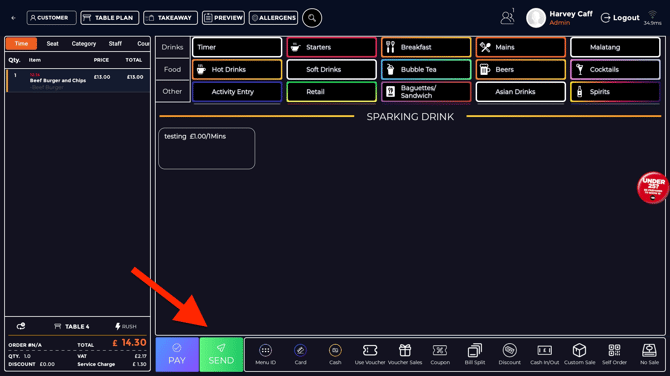
You will then return to the main menu. From here, tap “Send” to transmit the order to the designated table.
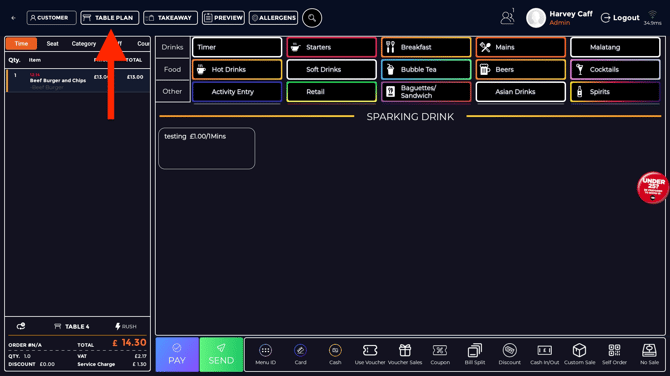
Next, navigate back to the table plan screen.
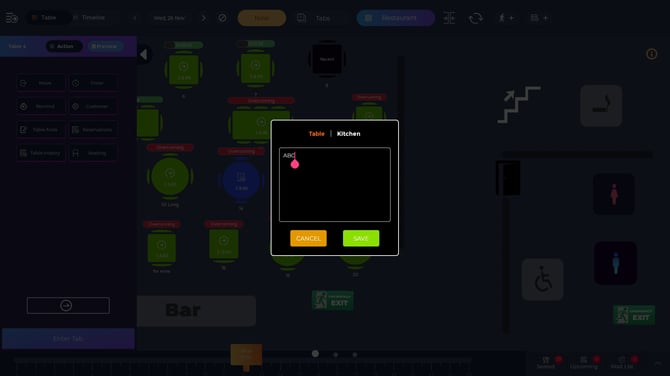
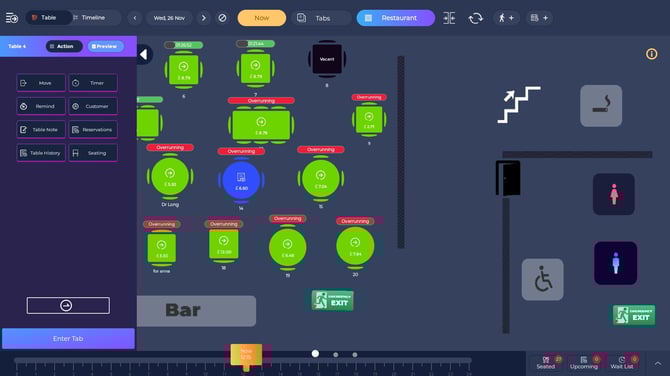
On the table plan screen, tap once on the table where you wish to add a note. A menu will appear on the left side of the screen—select “Table Note” to open the note entry field.
Enter your note in the provided field for the selected table, then tap “Save” to complete the process.