---
title: How to use vouchers on the SPARK app (handheld)
description: These guides will show you how to use vouchers on the SPARK app for your handheld device.
---
[Skip to content](https://helpcentre.sparkepos.com/knowledge/how-to-use-vouchers-on-the-spark-app-handheld#main-content)
English
Show submenu for translations
[More support](https://helpcentre.sparkepos.com/knowledge/kb-tickets/new?hsLang=en)
![spark 512\*512.png\]](https://helpcentre.sparkepos.com/hs-fs/hubfs/spark%20512*512.png?height=40&name=spark%20512*512.png)
- [Default HubSpot Blog](https://blog.sparkepos.com/blog)
Open main navigation
Close main navigation
- [Default HubSpot Blog](https://blog.sparkepos.com/blog)
- English
Show submenu for translations
- [More support](https://helpcentre.sparkepos.com/knowledge/kb-tickets/new)
- SPARK Powered by StreetAway®
SPARK Powered by StreetAway®
How can we help you?
- There are no suggestions because the search field is empty.
1. [SPARK • Help Centre](https://helpcentre.sparkepos.com/knowledge?hsLang=en)
2. [SPARK Pay](https://helpcentre.sparkepos.com/knowledge/spark-pay?hsLang=en)
3. [SPARK app (handheld)](https://helpcentre.sparkepos.com/knowledge/spark-pay?hsLang=en#spark-app-handheld)
# How to use vouchers on the SPARK app (handheld)
## These guides will show you how to use vouchers on the SPARK app for your handheld device.
1. [How to sell a gift voucher.](https://helpcentre.sparkepos.com/knowledge/how-to-use-vouchers-on-the-spark-app-handheld#SellGiftVoucher)
2. [How to redeem a gift voucher.](https://helpcentre.sparkepos.com/knowledge/how-to-use-vouchers-on-the-spark-app-handheld#RedeemGiftVoucher)
3. [How to scan a voucher/coupon QR code on the handheld.](https://helpcentre.sparkepos.com/knowledge/how-to-use-vouchers-on-the-spark-app-handheld#ScanVoucherandCoupon)
4. [How to gift a voucher.](https://helpcentre.sparkepos.com/knowledge/how-to-use-vouchers-on-the-spark-app-handheld#GiftAVoucher)
---
### How to sell a gift voucher
This guide will show you **how to sell a gift voucher** on the handheld.
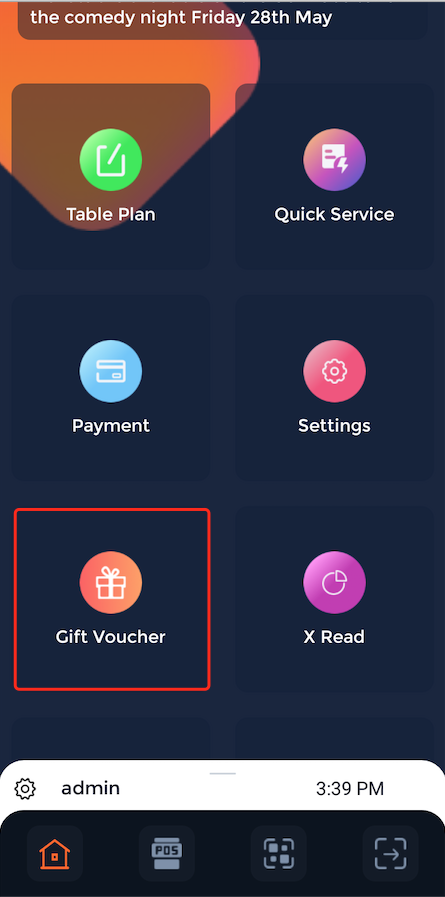
Firstly, select **'Gift Voucher'** on the homepage.
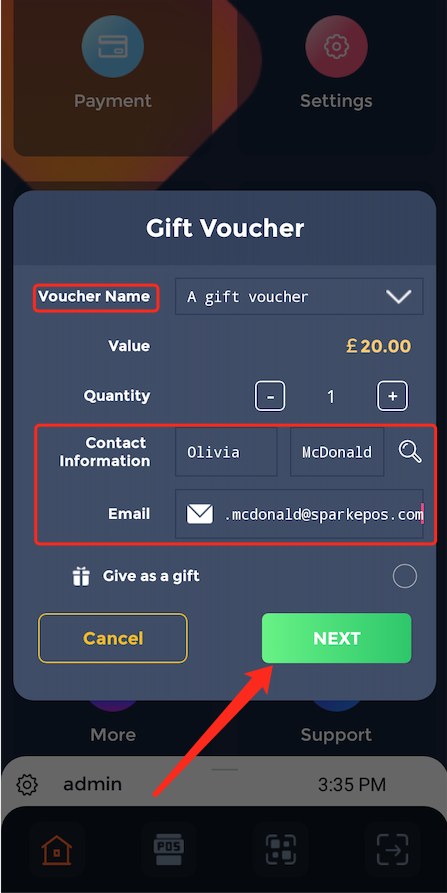
Then select which voucher the customer would like to buy and the **quantity** of the voucher. Then input their **contact information**, such as their name and email address. Customers have an option **to gift the voucher** if they would also like. When all information is correct press the "**Next**" button.
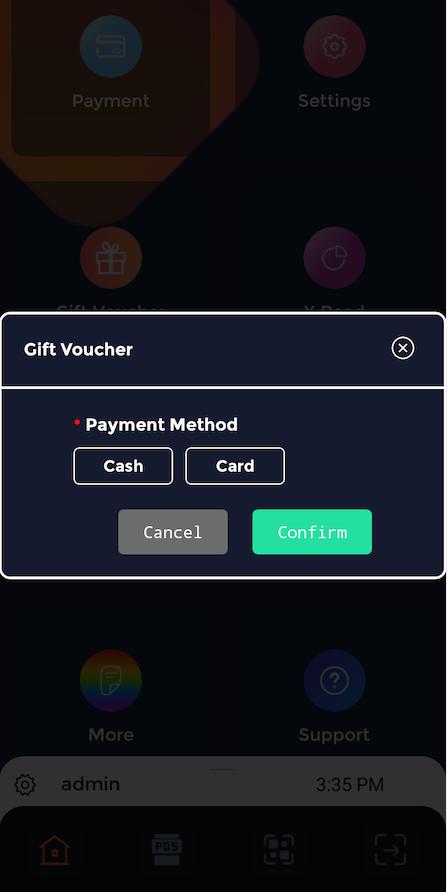
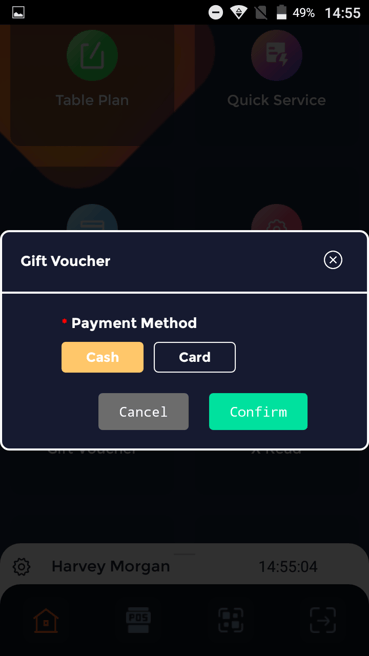
Then it will ask for a payment method, where customers can pay by either **cash or card**.
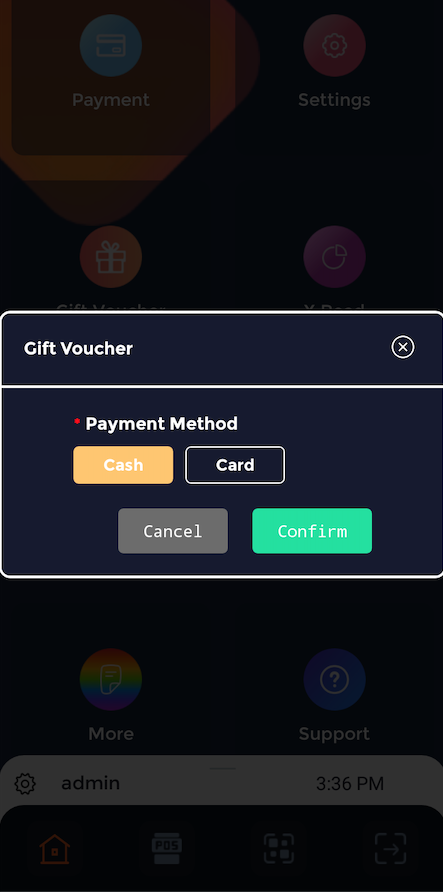
Select the payment method the customer prefers and press the green "**Confirm**" button. This will print a **receipt and send an email to the customer** so they have an online receipt as well.
---
### How to redeem a gift voucher
This guide will show you **how to redeem a gift voucher** on the handheld.
Firstly get the customer to check their **emails**.
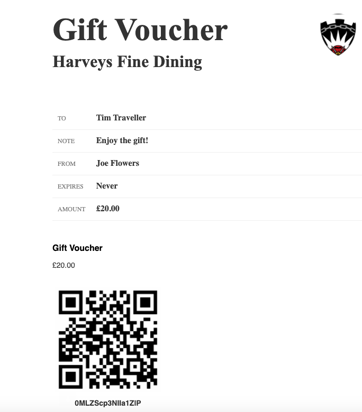
There will be an **email with the gift voucher** displaying the **QR code and code** which can either be scanned or manually typed in to redeem.
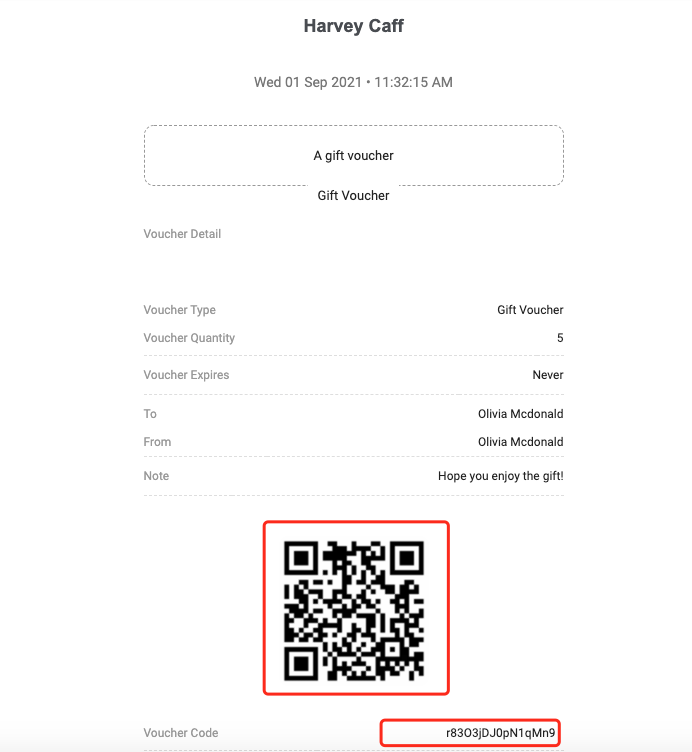
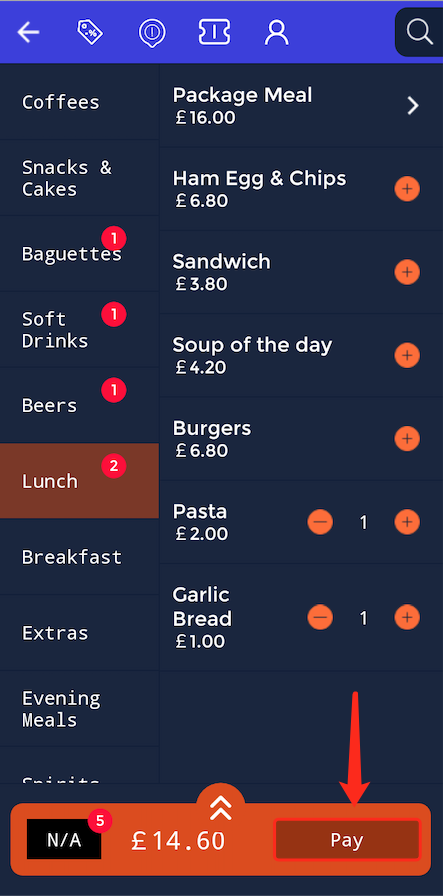
Then take the customers order. Once the order is complete, press the "**Pay**" button at the bottom of the screen.
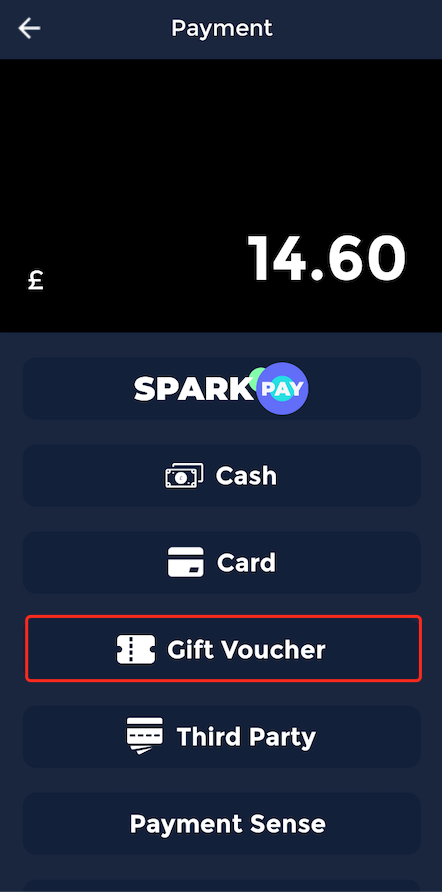
This will then display all the payment options. Then select the **Gift Voucher** option.
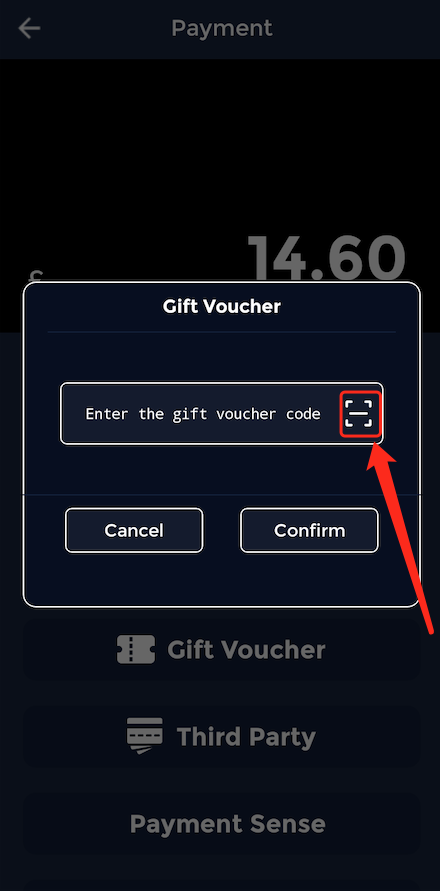
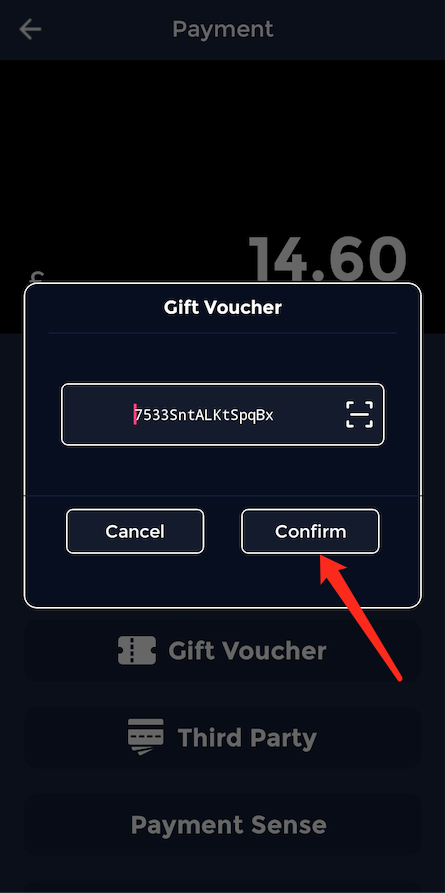
Either **manually type in the code** from the email or press the button on the right. This will **open the camera allowing you to scan the QR code**.
Then the code will be inputted into the device. Once the code is in press the "**Confirm**" button.
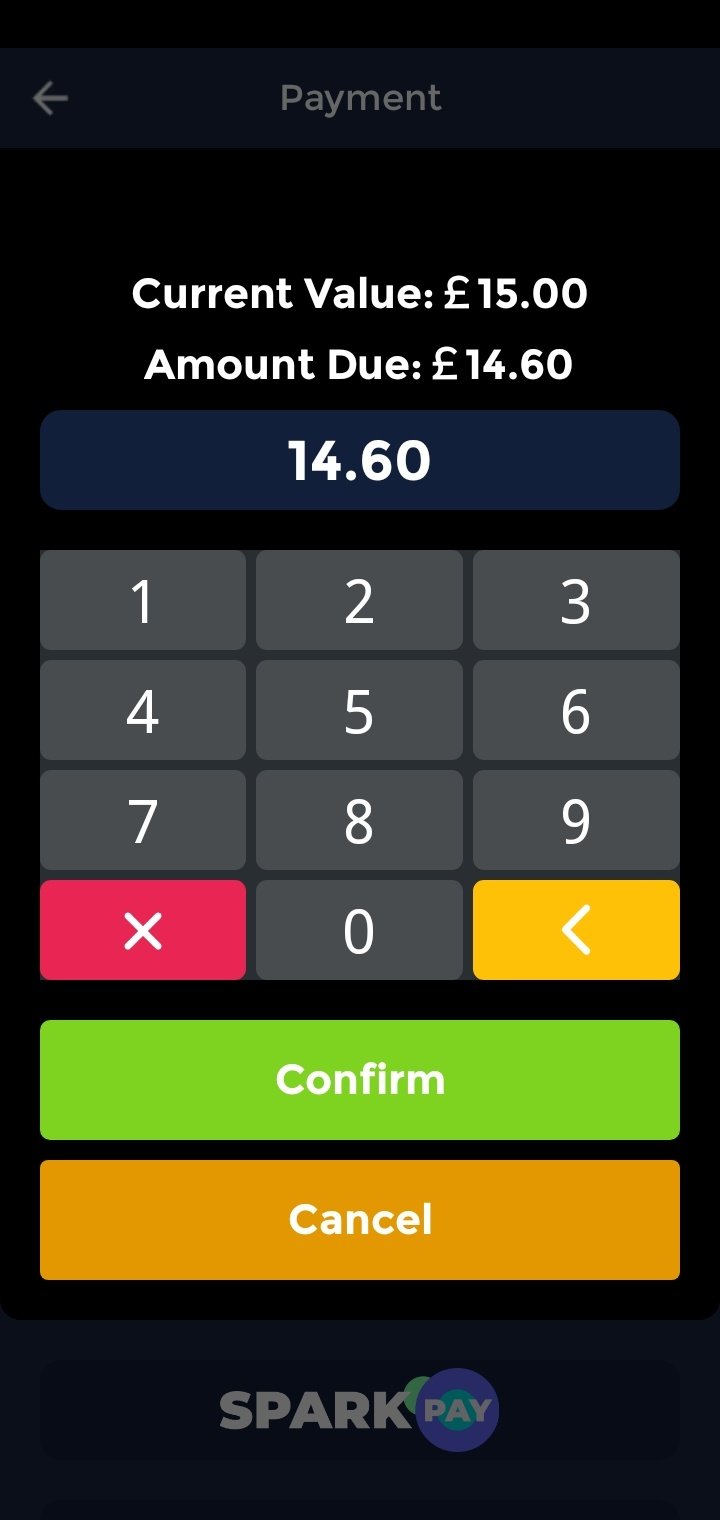
Then **input the exact amount**.
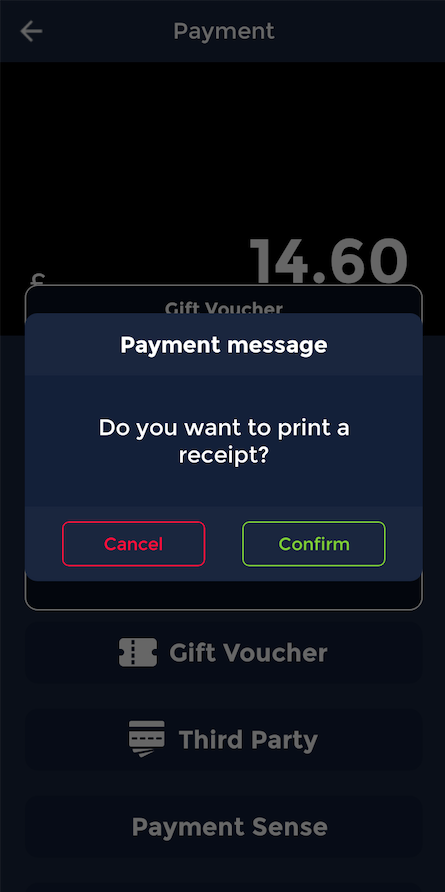
Once the payment has gone through a prompt for a receipt will appear, if the customer would like a receipt press the green "**Confirm**" button.
---
### How to scan a voucher/coupon QR code on the handheld.
This guide will show you **how to scan a voucher/coupon QR code** on the handheld.
Firstly, select the **Quick Service** option on the menu screen.
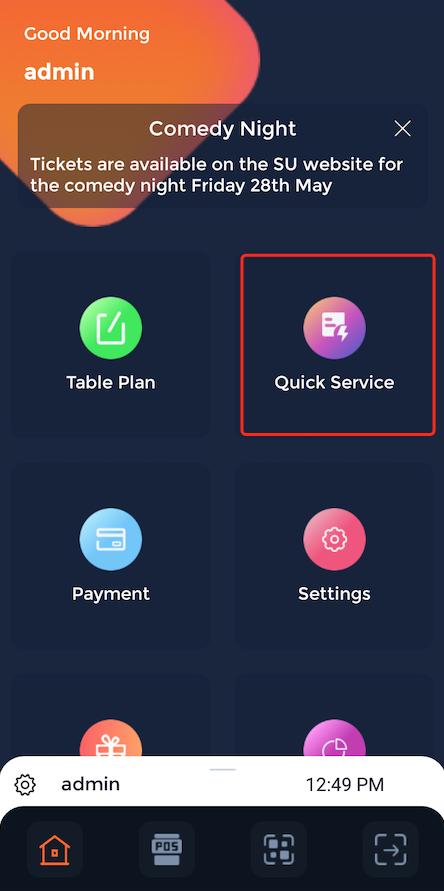
This will open the quick service menu, then select the **coupon button** and the top of the menu.
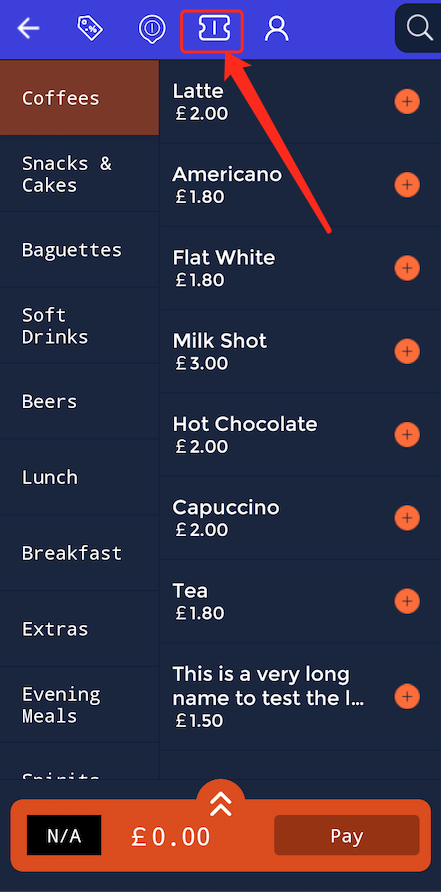
This will allow servers to **scan in a voucher or coupon code** by pressing the icon in the top left of the redeem menu.
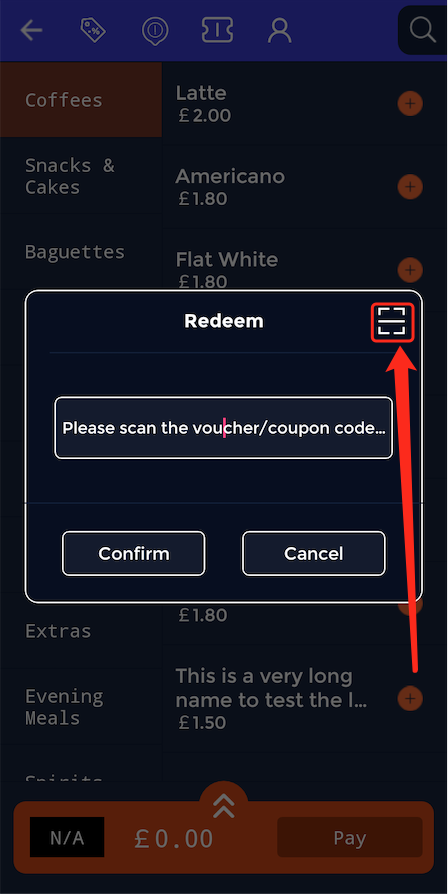
This will **open the camera and allow you to scan a QR code of a voucher or coupon** on the handheld device.

---
### How to gift a voucher/coupon on a handheld device.
This guide will show you **how to gift a voucher/coupon** on a handheld device.
1\. On the app home screen open **'Gift Voucher'.**
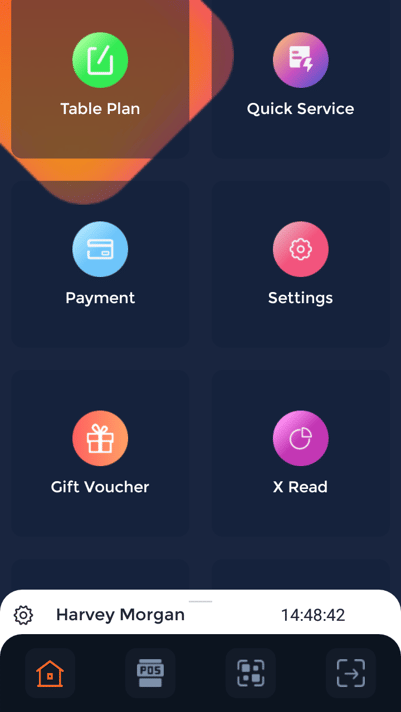
2\. You will be presented with a pop up with fields to fill in for the gift card.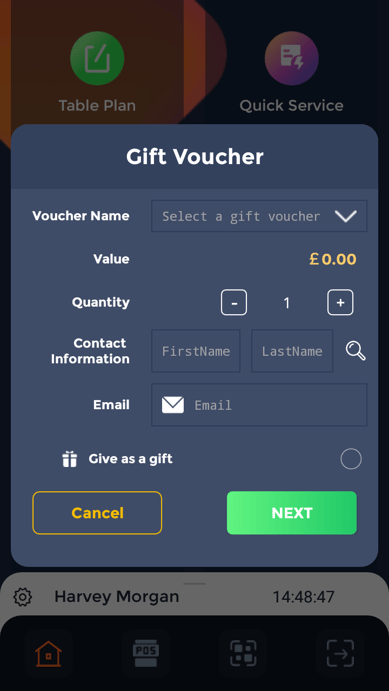
3\. Select the voucher and the recipient.
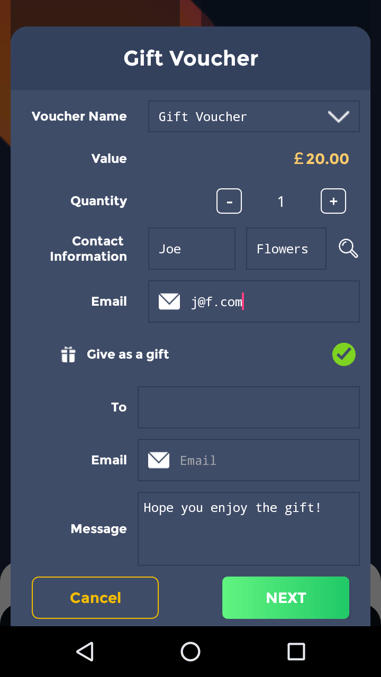
4\. To send the gift card to someone else, select **'Give as a gift'.**
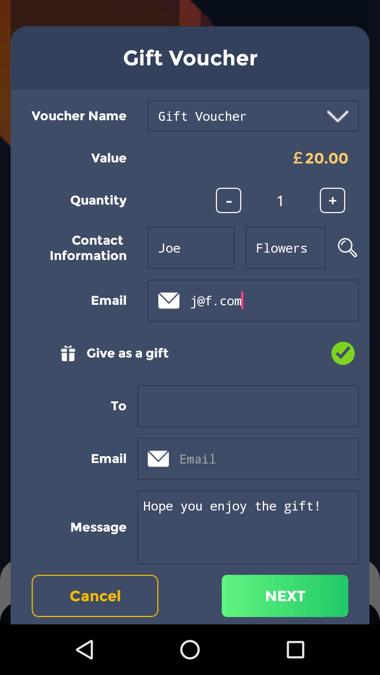
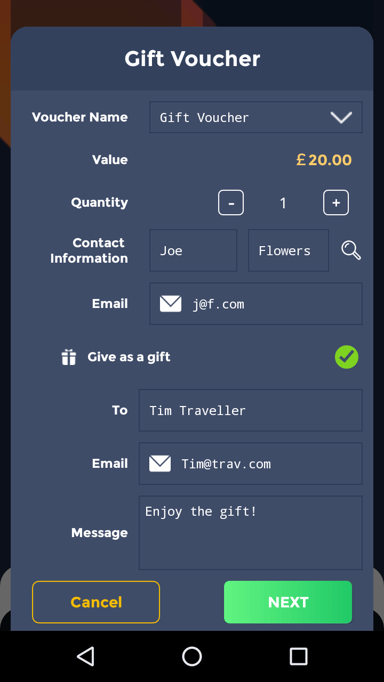
5\. More fields will show. This information is for the recipient of the sent gift. Once everything has been filled, press next.
6\. Now you will see an option to pay by cash or card. Select the payment type and press confirm.
7\. An email will be sent to the recipient with all the details and access to the gift card.
- [SPARK 2.0 - Getting Started](https://helpcentre.sparkepos.com/knowledge/spark-2-0-getting-started?hsLang=en#main-content)
- [Staff Management](https://helpcentre.sparkepos.com/knowledge/spark-2-0-getting-started?hsLang=en#staff-management)
- [Software & Installation](https://helpcentre.sparkepos.com/knowledge/spark-2-0-getting-started?hsLang=en#software-installation)
- [SPARK Cloud HQ](https://helpcentre.sparkepos.com/knowledge/spark-cloud-hq?hsLang=en#main-content)
- [Getting Started with Cloud HQ](https://helpcentre.sparkepos.com/knowledge/spark-cloud-hq?hsLang=en#getting-started-with-cloud-hq)
- [System Settings](https://helpcentre.sparkepos.com/knowledge/spark-cloud-hq?hsLang=en#system-settings)
- [Stock Management](https://helpcentre.sparkepos.com/knowledge/spark-cloud-hq?hsLang=en#stock-management)
- [Staff Management](https://helpcentre.sparkepos.com/knowledge/spark-cloud-hq?hsLang=en#staff-management)
- [Menu Management](https://helpcentre.sparkepos.com/knowledge/spark-cloud-hq?hsLang=en#menu-management)
- [Reports](https://helpcentre.sparkepos.com/knowledge/spark-cloud-hq?hsLang=en#reports)
- [CRM](https://helpcentre.sparkepos.com/knowledge/spark-cloud-hq?hsLang=en#crm)
- [Front Screen Media](https://helpcentre.sparkepos.com/knowledge/spark-cloud-hq?hsLang=en#front-screen-media)
- [End of day reports](https://helpcentre.sparkepos.com/knowledge/spark-cloud-hq?hsLang=en#end-of-day-reports)
- [Reservations](https://helpcentre.sparkepos.com/knowledge/spark-cloud-hq?hsLang=en#reservations)
- [Store Settings](https://helpcentre.sparkepos.com/knowledge/spark-cloud-hq?hsLang=en#store-settings)
- [Gift Voucher](https://helpcentre.sparkepos.com/knowledge/spark-cloud-hq?hsLang=en#gift-voucher)
- [SPARK EPOS Terminal](https://helpcentre.sparkepos.com/knowledge/spark-epos-terminal?hsLang=en#main-content)
- [Basics](https://helpcentre.sparkepos.com/knowledge/spark-epos-terminal?hsLang=en#basics)
- [Scanners](https://helpcentre.sparkepos.com/knowledge/spark-epos-terminal?hsLang=en#scanners)
- [Printing / Printers](https://helpcentre.sparkepos.com/knowledge/spark-epos-terminal?hsLang=en#printing-printers)
- [Settings](https://helpcentre.sparkepos.com/knowledge/spark-epos-terminal?hsLang=en#settings)
- [CRM](https://helpcentre.sparkepos.com/knowledge/spark-epos-terminal?hsLang=en#crm)
- [Getting Started](https://helpcentre.sparkepos.com/knowledge/spark-epos-terminal?hsLang=en#getting-started)
- [Vouchers](https://helpcentre.sparkepos.com/knowledge/spark-epos-terminal?hsLang=en#vouchers)
- [Payments](https://helpcentre.sparkepos.com/knowledge/spark-epos-terminal?hsLang=en#payments)
- [SPARK Reservations](https://helpcentre.sparkepos.com/knowledge/spark-reservations?hsLang=en#main-content)
- [Getting started with Reservation](https://helpcentre.sparkepos.com/knowledge/spark-reservations?hsLang=en#getting-started-with-reservation)
- [Terminal](https://helpcentre.sparkepos.com/knowledge/spark-reservations?hsLang=en#terminal)
- [Session Times](https://helpcentre.sparkepos.com/knowledge/spark-reservations?hsLang=en#session-times)
- [Back office](https://helpcentre.sparkepos.com/knowledge/spark-reservations?hsLang=en#back-office)
- [SPARK Handheld](https://helpcentre.sparkepos.com/knowledge/spark-handheld?hsLang=en#main-content)
- [Basics](https://helpcentre.sparkepos.com/knowledge/spark-handheld?hsLang=en#basics)
- [SPARK Pay](https://helpcentre.sparkepos.com/knowledge/spark-handheld?hsLang=en#spark-pay)
- [Device Settings](https://helpcentre.sparkepos.com/knowledge/spark-handheld?hsLang=en#device-settings)
- [Getting Started](https://helpcentre.sparkepos.com/knowledge/spark-handheld?hsLang=en#getting-started)
- [Transactions](https://helpcentre.sparkepos.com/knowledge/spark-handheld?hsLang=en#transactions)
- [Payments](https://helpcentre.sparkepos.com/knowledge/spark-handheld?hsLang=en#payments)
- [X-Read and End Of Day Reads](https://helpcentre.sparkepos.com/knowledge/spark-handheld?hsLang=en#x-read-and-end-of-day-reads)
- [Voucher](https://helpcentre.sparkepos.com/knowledge/spark-handheld?hsLang=en#voucher)
- [Table Plan](https://helpcentre.sparkepos.com/knowledge/spark-handheld?hsLang=en#table-plan)
- [Quick Service](https://helpcentre.sparkepos.com/knowledge/spark-handheld?hsLang=en#quick-service)
- [Customer LookUp](https://helpcentre.sparkepos.com/knowledge/spark-handheld?hsLang=en#customer-lookup)
- [Cash Draw](https://helpcentre.sparkepos.com/knowledge/spark-handheld?hsLang=en#cash-draw)
- [Troubleshooting Handheld connecting to Terminal](https://helpcentre.sparkepos.com/knowledge/spark-handheld?hsLang=en#troubleshooting-handheld-connecting-to-terminal)
- [SPARK Pay](https://helpcentre.sparkepos.com/knowledge/spark-pay?hsLang=en#main-content)
- [Transactions](https://helpcentre.sparkepos.com/knowledge/spark-pay?hsLang=en#transactions)
- [SPARK Pay settings](https://helpcentre.sparkepos.com/knowledge/spark-pay?hsLang=en#spark-pay-settings)
- [TidyPay Gateway](https://helpcentre.sparkepos.com/knowledge/spark-pay?hsLang=en#tidypay-gateway)
- [SPARK app (handheld)](https://helpcentre.sparkepos.com/knowledge/spark-pay?hsLang=en#spark-app-handheld)
- [Klarna](https://helpcentre.sparkepos.com/knowledge/spark-pay?hsLang=en#klarna)
- [Self Ordering](https://helpcentre.sparkepos.com/knowledge/self-ordering?hsLang=en#main-content)
- [Mobile Ordering](https://helpcentre.sparkepos.com/knowledge/self-ordering?hsLang=en#mobile-ordering)
- [Kiosk](https://helpcentre.sparkepos.com/knowledge/kiosk?hsLang=en#main-content)
- [Kiosk Express](https://helpcentre.sparkepos.com/knowledge/kiosk?hsLang=en#kiosk-express)
- [Kiosk Settings](https://helpcentre.sparkepos.com/knowledge/kiosk?hsLang=en#kiosk-settings)
- [SPARK KDS](https://helpcentre.sparkepos.com/knowledge/spark-kds?hsLang=en#main-content)
- [Getting Started](https://helpcentre.sparkepos.com/knowledge/spark-kds?hsLang=en#getting-started)
- [Features](https://helpcentre.sparkepos.com/knowledge/spark-kds?hsLang=en#features)
- [Robotics](https://helpcentre.sparkepos.com/knowledge/robotics?hsLang=en#main-content)
- [Bella Bot](https://helpcentre.sparkepos.com/knowledge/robotics?hsLang=en#bella-bot)
- [Ketty bot](https://helpcentre.sparkepos.com/knowledge/robotics?hsLang=en#ketty-bot)
- [Hola Bot](https://helpcentre.sparkepos.com/knowledge/robotics?hsLang=en#hola-bot)
- [Butler Bot W3](https://helpcentre.sparkepos.com/knowledge/robotics?hsLang=en#butler-bot-w3)
- [FAQ](https://helpcentre.sparkepos.com/knowledge/robotics?hsLang=en#faq)
- [PuduBot 2](https://helpcentre.sparkepos.com/knowledge/robotics?hsLang=en#pudubot-2)
- [Cleaning Robots](https://helpcentre.sparkepos.com/knowledge/cleaning-robots?hsLang=en#main-content)
- [Phantas](https://helpcentre.sparkepos.com/knowledge/cleaning-robots?hsLang=en#phantas)
- [SP50](https://helpcentre.sparkepos.com/knowledge/cleaning-robots?hsLang=en#sp50)
- [L50](https://helpcentre.sparkepos.com/knowledge/cleaning-robots?hsLang=en#l50)
- [C30](https://helpcentre.sparkepos.com/knowledge/cleaning-robots?hsLang=en#c30)
- [SH1](https://helpcentre.sparkepos.com/knowledge/cleaning-robots?hsLang=en#sh1)
- [FAQ](https://helpcentre.sparkepos.com/knowledge/faq?hsLang=en)
- [Create a Ticket](https://helpcentre.sparkepos.com/knowledge/create-a-ticket?hsLang=en#main-content)
- [Support Ticket](https://helpcentre.sparkepos.com/knowledge/create-a-ticket?hsLang=en#support-ticket)
- [Customer Portal](https://helpcentre.sparkepos.com/knowledge/create-a-ticket?hsLang=en#customer-portal)
- [EPOS FAQ](https://helpcentre.sparkepos.com/knowledge/epos-faq?hsLang=en)
- [Sunmi Products](https://helpcentre.sparkepos.com/knowledge/sunmi-products?hsLang=en)
- [Default HubSpot Blog](https://blog.sparkepos.com/blog)
[](http://www.sparkepos.com)
SPARK Help Centre
[mailto:email@email.com](mailto:email@email.com)
Copyright © 2026, SPARK EPoS